Digital attendance register: a practical plan to move off the paper register in one week
A one-week plan to move attendance from paper to a digital attendance register without losing a day's records, with clear roles and a checklist.
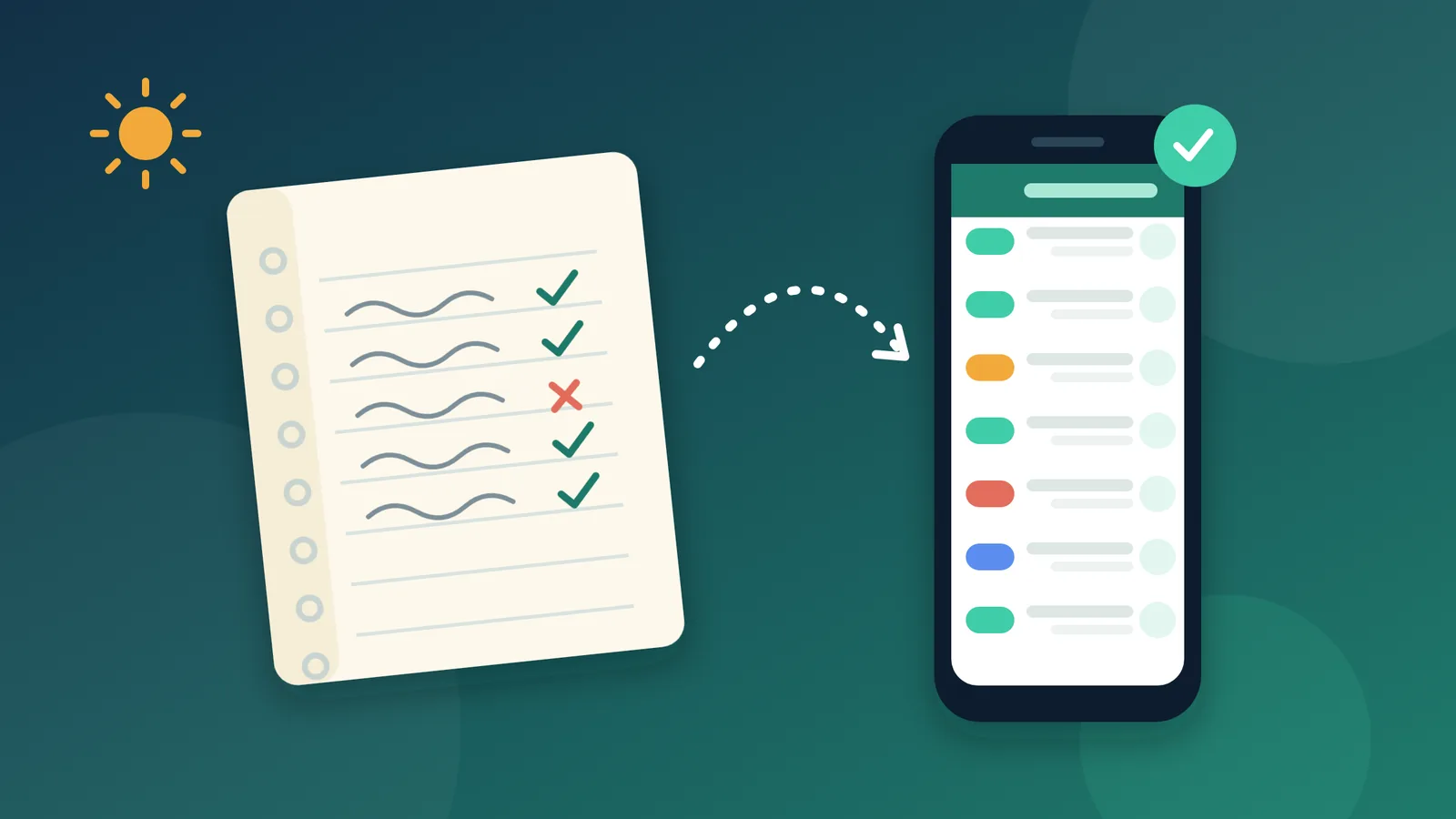
Attendance is usually the first routine a school moves when it adopts a school management system, because it happens every day and touches every student. Yet the paper register is often the last piece of paper the supervisor is willing to give up. They have kept it for years, and they worry that a single technical fault could cost them an entire day's records. The safest way to switch is to run the paper register alongside the digital attendance register for one week, until everyone trusts the system enough to put the book away.
How does a school move to a digital attendance register without losing a day?
The short answer: run the paper register and the digital attendance register in parallel for one school week, taking attendance on paper first on Sunday and Monday, then in the system first on Tuesday and Wednesday. On Thursday, check the monthly report against the register. If the two match, retire the paper register the following Sunday and start sending absence messages to parents.
What should the school prepare before the switchover week?
Most first-week mistakes stem from details left unsettled before the week begins, so it pays for the leadership team to sort out three things in advance:
- Every student in the right section: most early mistakes happen when a student is enrolled in the wrong section. Head them off by printing each section's student list from the system and handing it to the homeroom teacher to mark corrections in pen.
- One person responsible for each section: assign daily attendance for each section either to the supervisor or to the homeroom teacher, never to both.
- Hold back absence messages: wait until the second week before texting parents about absences. One mistaken message reaching a father whose son was sitting in class can undermine parents' trust in every message that follows.
How does the switchover week run, day by day?
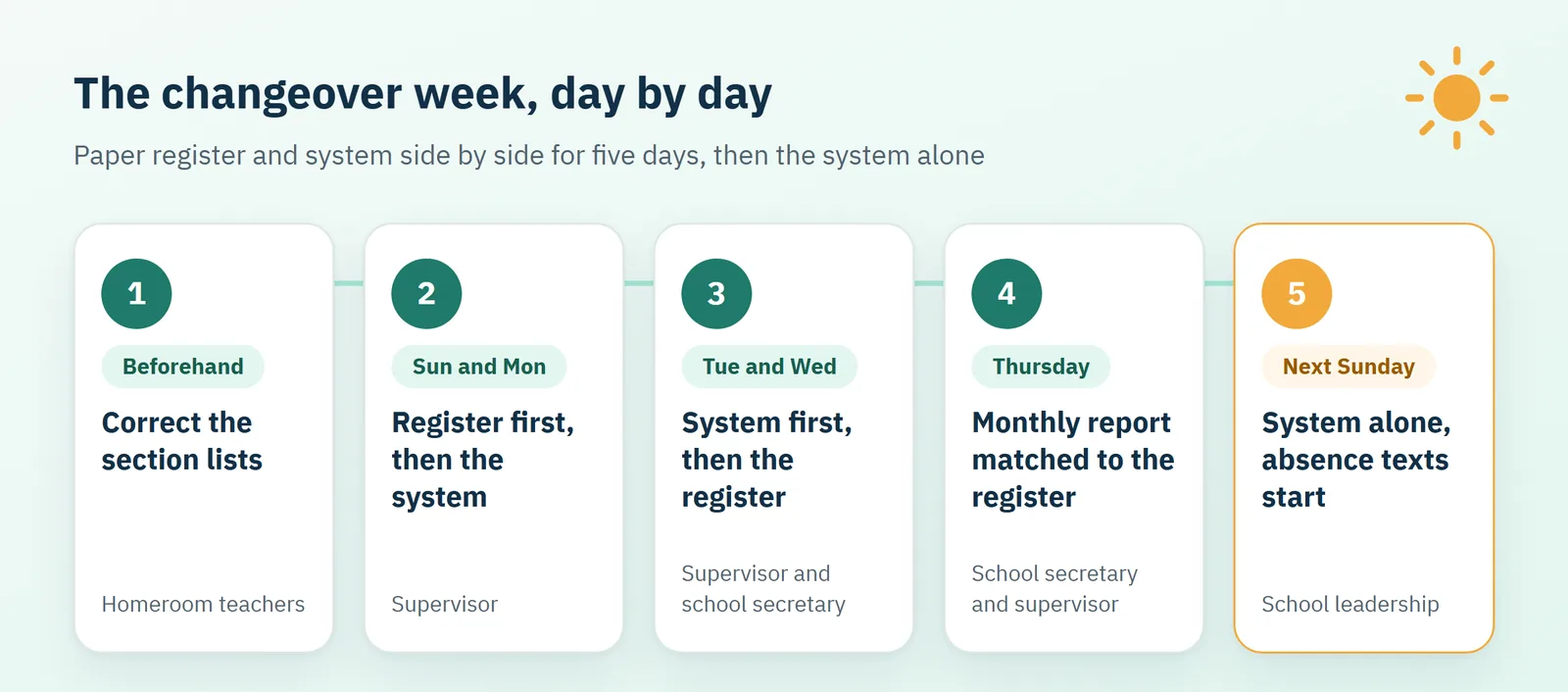
Sunday and Monday: the paper register first
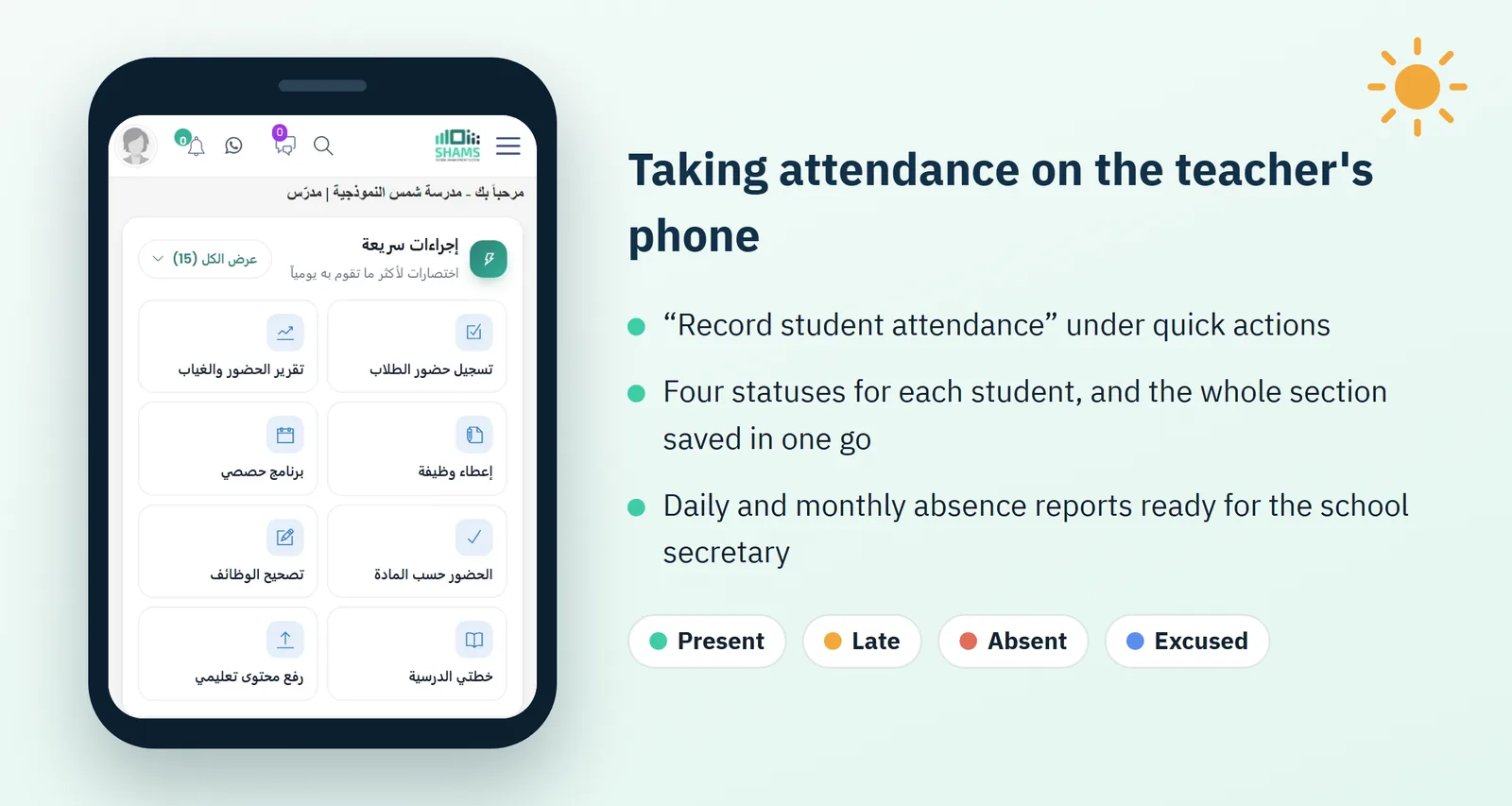
The supervisor takes attendance in the paper register as usual, then enters it into the system before the third period. These two days give the supervisor time to get comfortable with the attendance screen without any pressure: learning the four statuses ("Present", "Late", "Absent" and "Excused") and getting used to saving a whole section's attendance in one go.
Tuesday and Wednesday: the system first
On these two days the order is reversed. The supervisor takes attendance in the system, on a phone or a computer, at the start of the first period, and then copies it into the paper register. At the end of the school day, the school secretary prints the absence report and checks it against the register. Any discrepancy is far easier to resolve on the day it happens than at the end of the month.
Thursday: checking the digital attendance register against the paper one
The school secretary prints each section's monthly report from the system, and the supervisor checks it against what they recorded in the register over the previous four days. If the two match, the paper register has done its job. If they do not, the cause is usually one of three things:
- A student in the wrong section: move the student to the right section, then re-enter their attendance for those days.
- A section recorded by two people: assign that section to one person only.
- A day that was never entered: copy that day's attendance from the register, and ask a member of the office staff to check every day that all sections have been recorded.
The following Sunday: the system on its own
Retire the paper register, though you can keep it in a drawer for one more week if that reassures the team. This is when the school starts sending absence messages, scheduled to go out well after every section's attendance is in. Each message should include the student's name and the date, worded calmly with no blame and no threats, because the parent reading it will already be worried. For example:
Please note that your son Samer was absent from school today, Sunday 15/11/2026. The school office.
For more templates, along with advice on timing and message length, read our article on absence text messages.
A checklist for the switchover week
| Day | Who | Task |
|---|---|---|
| Before the week | Homeroom teachers | Correct the printed section lists |
| Sunday and Monday | Supervisor | Paper register first, then the system before the third period |
| Tuesday and Wednesday | Supervisor and school secretary | System first, then the paper register; check the absence report at the end of the day |
| Thursday | School secretary and supervisor | Check the monthly report against the paper register |
| The following Sunday | Leadership | Put the register away and start sending absence messages |

What does a school gain from a digital attendance register?
- A monthly report ready whenever you need it: no more copying the register into the computer at the end of every month.
- A clear morning overview for the principal: see how many students are absent and which classes have the highest absence rates, without chasing anyone for updates.
- Same-day notice for parents: families learn of their child's absence on the day it happens, rather than waiting for a call from the supervisor.
- No duplicate data entry: if your school uses a fingerprint device that exports Excel files, you can import attendance instead of entering it by hand.
How does Shams make taking attendance easier?
In Shams, the supervisor or the homeroom teacher records a section's attendance on a phone or a computer using the four statuses, then saves the whole section at once. The school secretary can print the daily or monthly absence report for any section whenever it is needed, and the "Today at school" dashboard shows the principal the absence rate in every class. Absence messages go out to parents at the time the leadership team chooses, and parents can also see their child's absences in their own account.
Try taking attendance in the demo school
Open the demo school with the teacher account T62 and take attendance for one of the sections, then sign in with the parent account P105 to see what reaches families. If you would like a switchover plan tailored to your school, request a demo.